
- 1.Four ways to hand over a model
- 2.Prepare the IFC for its recipient
- 3.Share through ATIS.cloud
- 4.Keep viewing, findings and approval separate
- 5.If the recipient cannot open the model
- 6.Give each recipient the access they need
- 7.Keep the handed-over version identifiable
- 8.Close the review loop after sending the link
Sending an IFC file is not the same as completing a review. The recipient must open it, locate the relevant objects and understand the requested decision. A browser link can reduce software friction, but it cannot fix the wrong version, missing permissions or an unclear review request.
This guide covers handover to another person. If you only need to open a file yourself, the online IFC viewer guide serves a different purpose.
Delivers an identified version with the right access route.
Checks the model with their own permissions and sends a clear response.
Links the reply to the correct version and retains the decision.
Four ways to hand over a model
| Mode | Useful when | Check |
|---|---|---|
| Send the IFC source | The recipient must retain or edit the file | Size, secure channel and receiving software |
| Open locally | Third-party hosting is not allowed | Tool capability and how results will be shared |
| Hosted project link | The recipient needs a prepared view | Rights, expiry and account-free access |
| Collaboration workspace | Several people track findings | Identity, history, ownership and export |
Swipe the table horizontally to see all columns.
The modes can coexist. A design team might deliver the source IFC and a review link. State which version is authoritative. If observations or approvals have contractual significance, identify the system that records them. Opening a link does not constitute approval.
Prepare the IFC for its recipient
- Check revision and units
- Find the required properties
- Check alignment with survey data if used
Inspect the actual receiving view
Check the required IFC schema or version, units, orientation and levels. Open the model through the intended receiving route. Objects present in the source may still be hard to find after import. Verify properties that matter to the client question, such as an asset identifier or classification.
If a point cloud accompanies the model, check their reference and alignment before asking anyone to judge a difference. A misalignment can look like a construction defect. Label the design model and existing-conditions survey with their respective dates.
Write a review instruction
Name the area, exact question, response deadline, reply channel and file version. For example: “Please check maintenance access around the second-floor plant room in the IFC version issued on 8 October, and flag areas requiring revision by Friday.” A bare link gives the recipient no decision to make.
Share through ATIS.cloud
- Choose invitation or link for the recipient
- Set controls available under the offer
- Test the URL outside the administrator session
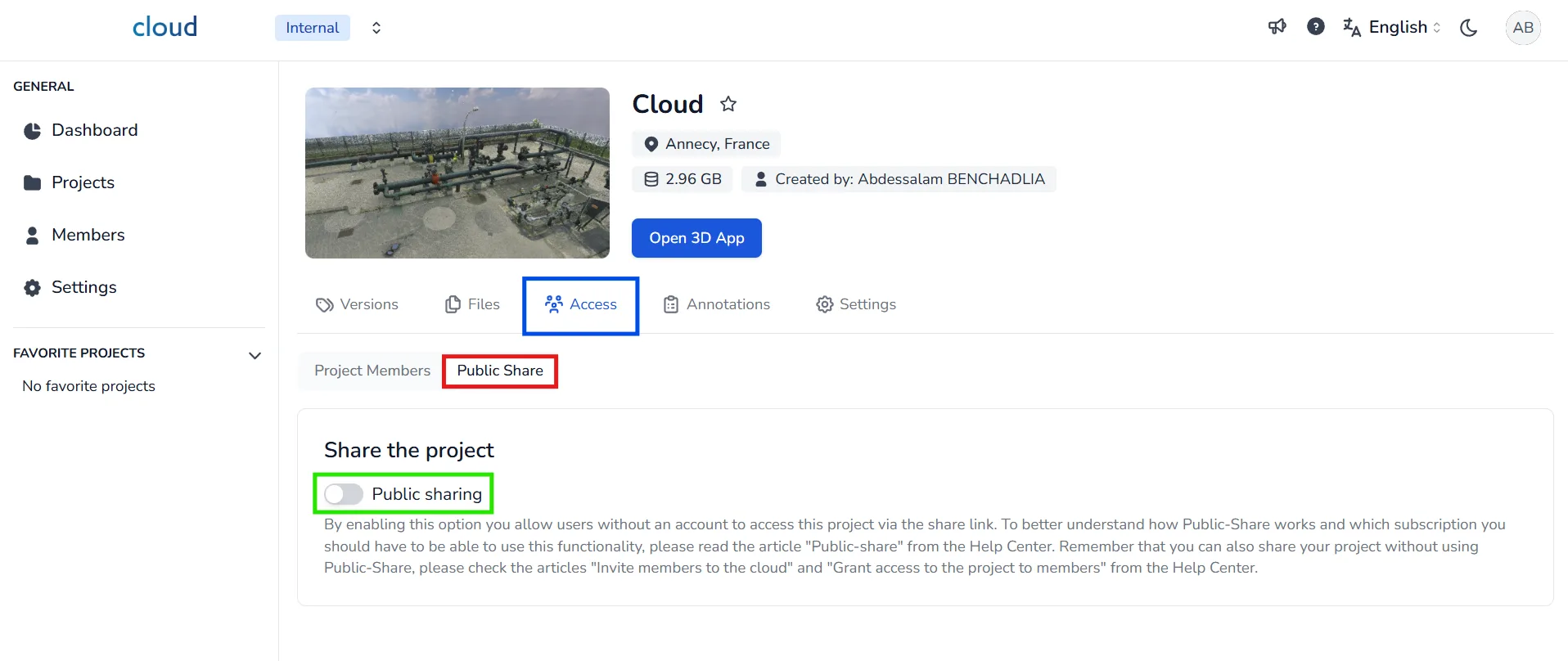
ATIS.cloud can make 3D project resources available in a browser, including IFC object structure under the applicable offer. Its documentation describes two routes: invite a person to the workspace or enable public sharing so someone without an account can open the project URL.
For a public link, the project owner uses the Access tab, enables public sharing, chooses available settings and copies the generated URL. The documentation covers expiry, displayed tools and optional password protection. A valid subscription is required, and expiry limits depend on the plan. Public-link access is not the same as invited-member rights.
Before delivery, open the link while signed out and, where practical, on the recipient's device. Check the model version, target area and tools. Test expiry and access revocation when the project requires them.
Keep viewing, findings and approval separate
- Name the reviewed object or area
- Define a response channel
- Archive an explicit decision tied to the revision
Do not assume a public visitor can save annotations, download the source IFC or approve a model merely by opening it. Those behaviours depend on access mode and configuration. Test them in the exact receiving conditions.
Ask for a structured finding: location, object or view, observation, requested action and owner. If BIM issues must move between tools, a BCF process or review register may be needed. buildingSMART distinguishes IFC model exchange from BCF issue communication.
Keep the IFC version, delivery date, invitation or link scope, and the client's explicit response together in the project record. Archive an approval received through another channel where the project process requires it.
If the recipient cannot open the model
Identify the failed step:
- Access denied: expired link, wrong password, disabled sharing or missing invitation.
- Project opens but IFC is absent: wrong version, unloaded resource or permissions.
- View is confusing: orientation, levels or review instruction need correction.
- Properties are missing: inspect source data and what import actually exposes.
- No way to reply: provide a clear response channel; do not assume guest annotations persist.
Resolve the issue with the recipient on an authorized sample. Once fixed, confirm in writing which version is authoritative.
Give each recipient the access they need
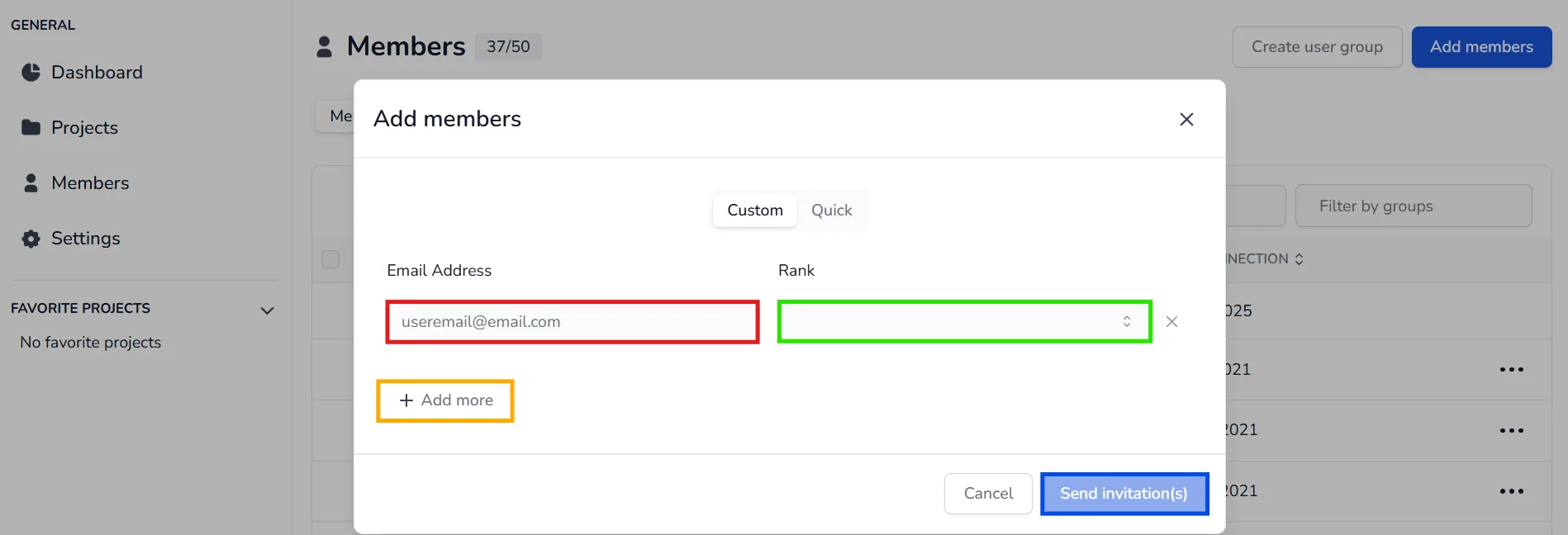
An external review uses different rights from those of the model author. Name the recipient and the expected action first, then select the handover route. A public link can simplify a short consultation. A named invitation may suit a person who needs a continuing role in the workspace. The exact controls depend on the subscription and project configuration.
| Recipient | Expected action | Check before sending |
|---|---|---|
| Client reader | Open the right area and respond | Link, expiry, password and response channel |
| Domain reviewer | Inspect properties and discrepancies | Resource rights and model version |
| Design team | Revise the source model | File access and revision procedure |
| Approver | Record a formal decision | Identity, version and approval archive |
Swipe the table horizontally to see all columns.
One URL does not replace every delivery. If the recipient must edit the source, supply the IFC through the agreed channel. If they only need to inspect, a hosted project may be enough. If they must sign off, use the contractual approval process specified for the project.
Repeat the task without author privileges
The person sharing a model usually sees more than the recipient. Open the link in a signed-out browser, then ask someone outside the setup team to locate a named object, read a property and answer a question. Check what happens after link expiry as well. This rehearsal exposes missing rights and unclear instructions before the client encounters them.
Keep the handed-over version identifiable
Name the model consistently with its building or zone, discipline, revision, date and status. In the handover message, describe what changed and which questions remain open. Do not present a work-in-progress model as approved. If several disciplines supply IFC files, say whether the review concerns one file or a combined view and who owns the interfaces.
Keep a concise handover record:
- IFC identifier and date;
- author, recipients and purpose of review;
- access route, duration and restrictions;
- review instruction, deadline and response channel;
- responses received and final decision;
- location of the source archive and supporting evidence.
This record does not depend on one application. ATIS.cloud can support browser consultation, while the project owner defines where contractual approvals are stored. When a finding concerns an object, include its identifier and a contextual view in the chosen issue record. A comment without a version or identifiable object becomes difficult to act on after the model changes.
Test the workflow: inspect project sharing, supported formats and BIM and construction, then request a demo with a model from your team. For project-wide platform selection, use the cloud BIM platform guide.
Close the review loop after sending the link
The hardest part of sharing an IFC is often what happens next. A link creates access, not agreement. The client may inspect the wrong revision, comment on an object that has since moved or assume that no reply means approval. Set the response rule in the handover message before the review begins.
A practical instruction states:
- the model identifier and revision under review;
- the area or objects the client should inspect;
- the exact question to answer and the due date;
- the channel for findings and the person responsible for triage;
- how a formal approval or rejection will be recorded.
For a small review, a reply with an object identifier, screenshot and written decision may be sufficient under the project's process. For a multidisciplinary workflow, a BCF issue or a controlled issue register may be more suitable. Do not claim that a public-link visitor can persist an annotation or export a BCF unless that ability is verified for the precise access mode and offer. The person issuing the link remains responsible for reconciling each response with the source model.
Handle a revised model without losing context
If the design team replaces the IFC during review, tell recipients whether the earlier link now opens the revised model or whether a new project is being shared. Keep the previous model identifier and the date of change. Reopen unresolved findings against the new revision, then close only those that the responsible reviewer has checked. A comment that was valid on revision A may no longer refer to the same object in revision B.
End with a simple decision record: recipient, version reviewed, issues raised, response to each issue, approving authority and final status. Store it with the project documents. ATIS.cloud can help the team reach and inspect the 3D material in a browser, while the project's agreed governance route retains the formal decision. This distinction prevents a successful model opening from being mistaken for a completed client handover.
Confidentiality is part of the route. Before sending the project, check whether the IFC exposes sensitive rooms, strategic equipment or information reserved for particular contractors. Choose recipients and the access window accordingly. After the response, revoke access that is no longer needed and confirm who retains the source file. If the link spread further than intended, refresh it or adjust permissions where the offer permits, then tell the project owner. Convenient browser access still requires a clear record of authorized recipients.
Sharing an IFC means handing over an identifiable version, giving the right access, requesting a precise response and retaining the decision. Sending the file alone does not finish the review.
Set up a review project
Load an authorized IFC and test the consultation route available under your offer.
Frequently asked questions
The documentation describes public links that can be opened without an account when the sender's subscription allows them. Workspace invitations require sign-in and their own permissions.
Do not assume so. Downloads and tools vary by access route and configuration. Test the recipient view before promising file delivery through a link.
Define who can approve, which version is under review, how they must respond and where the decision is stored. A model view opening is not approval.
Only when the client needs to compare the model with existing conditions. Check alignment and explain the date and role of each resource. Otherwise the IFC may be enough.
Open it outside the administrator session with the recipient's rights. Check the version, area, needed properties, any password and the route through which the client will respond.
Related articles
Choosing a cloud BIM platform for the work your team does
Separate IFC viewing, survey delivery, BIM coordination and CDE governance. Use practical criteria to choose a cloud BIM workflow for your team.
Open IFC files online: compare free tools
Open IFC files in your browser, on your computer or within a shared project. Compare free access options, suitable uses and their limits.
IFC File: Complete Guide (Open, Convert, Share) 2026
What an IFC file is, IFC versions (2x3, 4, 4.3 = ISO 16739-1:2024), how to open free, convert RVT/DWG/SKP, share with non-BIM clients.